Sumix encourages you to have valid Software Maintenance and Support Plan entitling you to regular software updates.
If your plan expired, please contact to renew it.
To get technical support and assistance or to request the latest software update, please contact Sumix in one of the ways described below:
1. E-mail to . Your request will be submitted to the automated Request Tracking System and one of our representatives will contact you shortly.
2. Call +1 (877) 233-3385 and press 3 or wait for an Operator to answer.
The line works during office hours: 9 a.m. through 5 p.m. PST/ PDT, 10 a.m. through 7 p.m. EET/ EEST.
3. We might need to set up a remote session with you. To start a session, please download TeamViewer. Then run TeamViewerQS.exe file. Provide your ID and Password and wait until a Sumix technician enters your PC.
4. On-site visit can be arranged at a special request of a customer.
Sumix provides a one-year warranty for microscope probes and their accessories.
Product warranty remains valid provided that the product was properly installed and used.
Product warranty does not apply if defects, malfunctions, or failures of the warranted product were caused by:
This warranty is limited to the repair and/or replacement, at SUMIX sole discretion, of the defective product during its warranty period.
If the product was damaged by one of the reasons indicated above, Customer may still replace defective product after the advance payment (the cost of the replaced product in this case is negotiable and depends on the level of defect of the returned product).
The customer agrees to assume the risk of loss or damage during transit, to prepay shipping charges, and to use the original shipping container or equivalent.
What is included into a standard SMX-Scopio digital probe kit?
A standard kit includes one probe of a chosen model and one case for device transportation. It also includes MaxInspect™ software which is usually supplied via email.
What is included into a standard SMX-Scopio-A analog probe kit?
A standard SMX-Scopio-A kit includes one SMX-Scopio-A probe, a TFT display with accessories (a wristband, bench stand, charger, AV cable) and one case for device transportation.
What is the warranty period of SMX-Scopio probes?
The warranty period is one year.
What are system requirements for MaxInspect™ software?
For SMX-Scopio probes and SMX-Manta
Operating system: Windows 11, Windows 10
For exporting measurement results: Microsoft™ Excel® 2010 or higher
Processor Minimum: Intel PIII or higher. Recommended: Core 2 Duo
Performance: Minimum 300 Mflops. Recommended: 400 Mflops or higher
Memory Minimum: 512 MB. Recommended: 1024 MB
USB 2.0/3.0 Intel integrated controller
Video: 8 MB memory. Recommended: GeForce 4xxx/Radeon 9xxx or higher
For SMX-Manta+
Operating system: Windows 11, Windows 10
For exporting measurement results: Microsoft™ Excel® 2010 or higer
Processor Minimum: Core 2 Duo
Performance: Minimum 400 Mflops or higher
Memory Minimum: 1024 MB
USB 3.0 Intel integrated controller
Video: 8 MB memory. Recommended: GeForce 4xxx/Radeon 9xxx or higher
Where can I find MaxInspect™ User Guide?
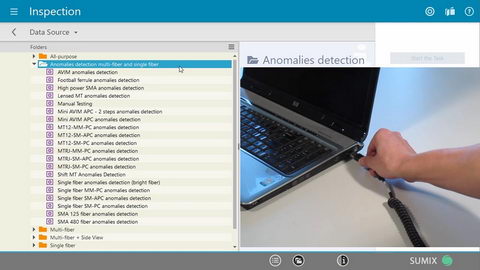
You can find MaxInspect™ User Guide together with Scopio Device Guide in PDF format by opening MaxInspect™ software > Home > User Guide (in section help)
How can I connect the digital probe to my PC? Does the probe need an external power supply?
Please connect your probe to your PC via USB2.0 or USB3.0 port (SMX-Manta+ only works on USB3.0). No external power supply is needed as the probe is charged from the PC.
How can I use the analog SMX-Scopio-A probe?
You can use it together with a TFT screen for visual inspection of fiber optic connector end-faces.
What is the difference between SMX-Scopio and SMX-Scopio-B probes?
Both models are digital probes used for automatic inspection of fiber optic connector end-faces. The Scopio-B probe has a knob on the device body. You can start connector inspection by pushing this knob instead of using the computer mouse to push the inspection button in the software.
What is the difference between SMX-Manta and SMX-Manta+ probes?
Both models are digital probes used for automatic visual inspection of fiber optic connector end-faces. The SMX-Manta+ probe has a autofocus feature. No need in manual focusing. Just push the button on the top of the Manta+ and get result.
Why do I need tips for inspecting fiber optic connectors?
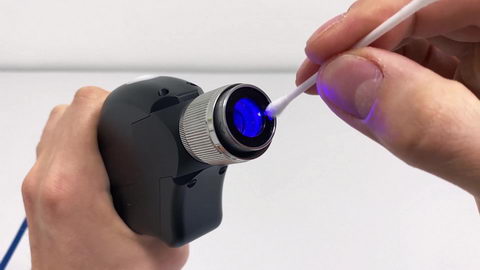
You need tips for precise positioning of fiber optic connectors close to the probe objective. Learn more about tip type and purpose from Scopio accessories page
Why do I see only a part of connector end-face?
You may try increasing field of view by setting bigger viewport size in the MaxInspect™ software. Auto Tune Image button adjusts the viewport size automatically.
What standards are used for Pass/Fail criteria in MaxInspect™?
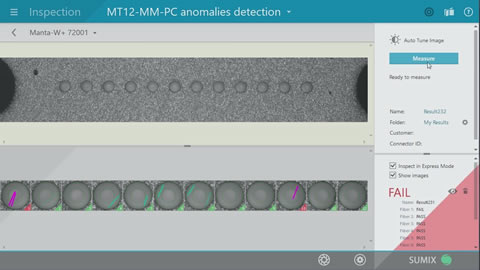
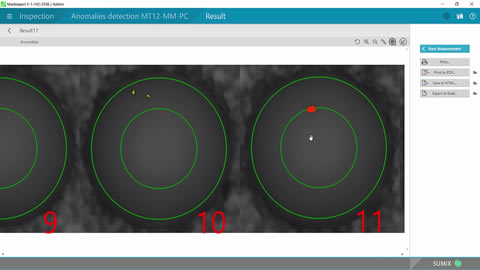
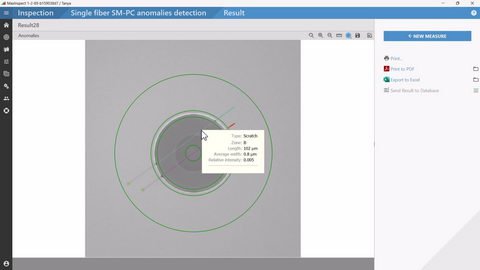
MaxInspect™ Pass/Fail criteria are based on IEC standards for different zones A, B, C and D on the connector end-face. These criteria are stored in presets. We can provide a detailed reference upon request. MaxInspect™ software allows you to define your own Pass/Fail criteria by creating new presets.
I need to print out measurement results. Is there an easy way to do it in MaxInspect™?
You can easily print measurement results using reports in MaxInspect™. You can save results in Excel or HTML formats and store them for future reference.
I need to keep measurement results. How can I protect them from occasional deletion or data corruption?
You can define your own location for storing inspection results.